Back Up Your EzCad3: The Four Files That Are Your Calibration
Losing your EzCad3 calibration files means your galvo fiber laser forgets how to cut and engrave. Back up these four critical files today to protect your workshop from expensive downtime and ruined material.
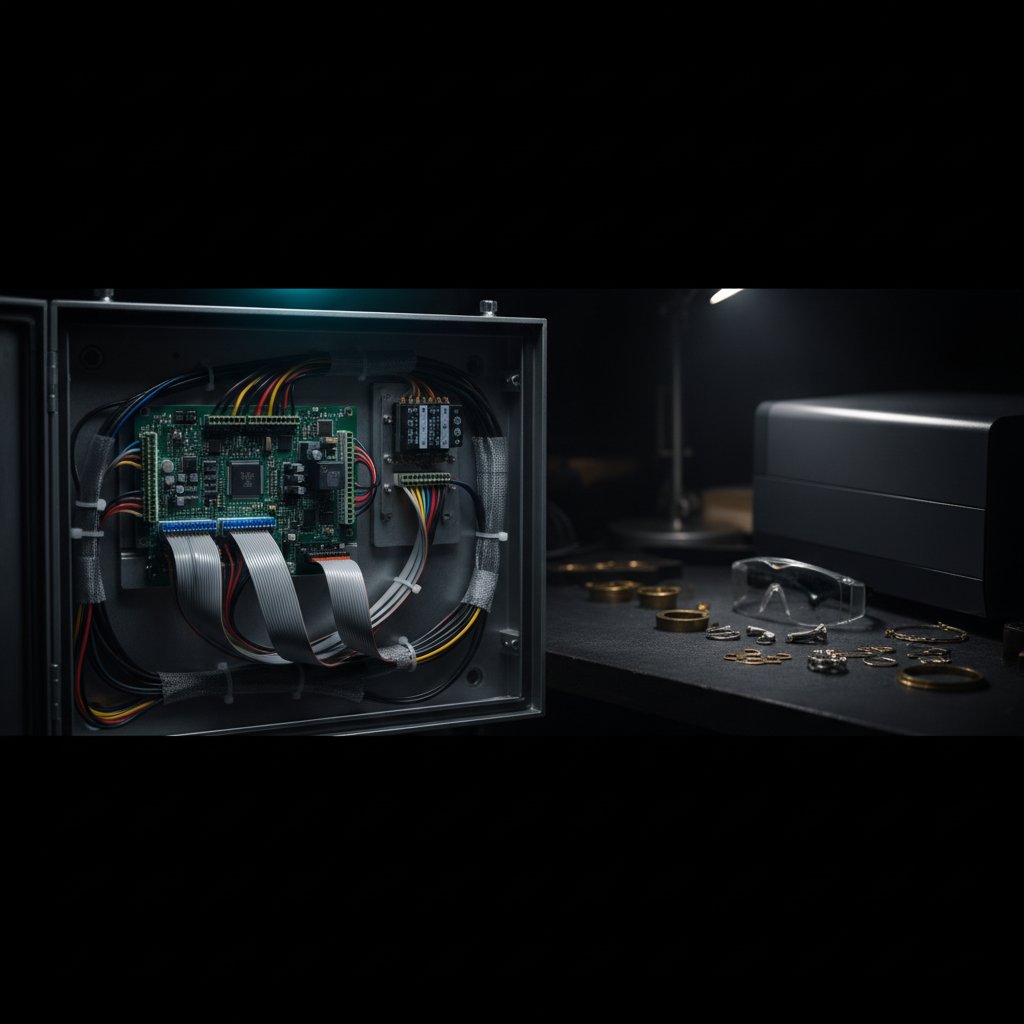
If you run a galvo fiber laser with EzCad3, there are four files that define your machine's entire calibration, its focus, and all your carefully tuned engraving recipes. Lose them, and your laser will no longer cut or mark correctly, costing you hours of re-calibration and potentially valuable material. We learned this the hard way, losing sterling silver to problems nobody had written down.
Before you touch your laser's settings, before you upgrade EzCad3, and especially before you reinstall Windows, make a copy of these four files. It's the cheapest insurance you can buy for your workshop.
Safety First: Protect Your Eyes and Lungs
Working with a fiber marking laser is serious. This is a Class 4 laser, and the 1064 nm beam is invisible. Reflections from metal surfaces can cause permanent eye damage instantly and silently. Always wear laser safety glasses rated for 1064 nm (with an OD suitable for your source power), and ensure everyone in the room does the same. Metal marking produces fine particulate and fumes; proper extraction with a suitable filter is essential health equipment, not an accessory. Never leave a running job unattended. Remember, software interlocks are a convenience, not your primary safety layer.
Why Your EzCad3 Calibration Is Gold
Your galvo fiber laser, whether it's engraving a deep mark on silver for enamel or cutting intricate patterns, depends entirely on precise calibration. This calibration isn't stored on the controller board itself, nor is it hard-coded into the laser source. Instead, it lives on your computer, within a few critical files managed by EzCad3. These files tell your machine:
- How to move its Z-axis for perfect focus.
- How to correct for optical distortions across the marking field.
- The exact parameters for every "pen" or recipe you’ve ever created.
- The power table for your specific laser source.
Without these files, your machine is just a collection of parts. It will run, but it won't mark accurately, and it certainly won't cut. We've seen our own cuts fail completely with a focus error of just 2 mm, turning a working recipe into wasted silver.
Locating the Critical Files: The PARAM Folder
All the essential calibration files for your EzCad3-driven machine are found in one place: the PARAM folder. This folder is usually located within your EzCad3 installation directory, for example, C:\EzCad3\PARAM.
Inside, you will find four critical files that form the backbone of your machine's personality and performance:
-
Motors.ini: This file holds all your machine's axis configuration data, most critically the factory-calibrated focus position. On our machine, the factory focus is-59.6 mm. For cutting, remember the rule:Z = focus + material thickness. If this number is wrong, your laser will not cut properly. For months, our own software needed more passes than EzCad3 for the same job because our Z reference was about 2.1 mm too high, making every cut run out of focus. You can learn more about this folder's contents in Inside EzCad3's PARAM folder: where your machine's real settings live. -
MarkParamlib.ini: This is your parameter library, often called your "pen library." It stores every single setting for every "pen" you've ever defined in EzCad3 – your speeds, powers, frequencies, pulse widths, pass counts, and timing controls. This is where your workshop's accumulated knowledge of engraving and cutting recipes lives. For instance, our deep silver engraving recipe uses a speed of700 mm/s, power at95 %, frequency of40 kHz, and a pulse width of200 nsacross5 passes. Understanding these settings is key to consistent results; we discuss them further in Speed, power, frequency and passes: which knob to turn first. -
[your_machine_name].cor: This is your galvo correction file. It's the optical map that tells your galvos how to compensate for field distortions, ensuring that a 10 mm line drawn at the center of your 110 x 110 mm field is exactly 10 mm at the edge. Without this file, your marks will be stretched, skewed, or curved, especially as you move away from the center. This file is unique to your F-theta lens and galvo setup. -
LaserPW.ini: This file contains the power calibration table for your specific laser source, mapping percentage power settings in EzCad3 to the actual output power characteristics of your laser. While less frequently changed than the others, it's still part of your machine's unique profile.
The Step-by-Step Backup Process
Backing up these files is simple, fast, and will save you immense headaches.
What You Need
- A USB flash drive, external hard drive, or network location.
- About five minutes of your time.
Order of Operations
- Close EzCad3: Before you copy any files, ensure EzCad3 is completely closed. This prevents any issues with files being in use or corrupted during the copy process.
-
Navigate to the
PARAMFolder: Open File Explorer and go to your EzCad3 installation directory (e.g.,C:\EzCad3). Open thePARAMfolder. -
Select and Copy the Files: Select
Motors.ini,MarkParamlib.ini, your specific.corfile (it will have your machine's name), andLaserPW.ini. Right-click and choose "Copy." -
Paste to a Safe Location: Go to your backup destination (USB drive, network folder, etc.). Create a new folder named something like
EzCad3_Backup_YYYY-MM-DD(e.g.,EzCad3_Backup_2024-03-15). Paste the copied files into this new folder. - Verify the Copy: Briefly check that the files are present in your backup folder and that their sizes seem reasonable (not zero bytes).
That's it. You've just saved yourself from a potentially catastrophic loss of machine calibration. We recommend doing this annually, or any time you make significant changes to your machine setup or upgrade EzCad3.
Summary of Critical Files
| Filename | Description | Impact if Lost/Corrupted |
|---|---|---|
Motors.ini |
Axis settings, Z-axis steps/mm, and critical focus height (e.g., -59.6 mm). |
Incorrect focus, inability to cut or engrave consistently. |
MarkParamlib.ini |
All your saved engraving and cutting parameters (pens). | Loss of all established recipes; inconsistent marks, wasted material. |
[machine].cor |
Galvo correction file for optical field distortion. | Distorted, skewed, or inaccurate marks, especially at field edges. |
LaserPW.ini |
Laser source power calibration table. | Inaccurate power output relative to software settings. |
What Happens If You Don't Back Up (And What It Costs)
If you lose these files without a backup, you're looking at significant problems. Your EzCad3 installation might revert to default settings, which are almost certainly not calibrated for your specific hardware. The consequence is immediate: your laser will simply not work as it should.
- Ruined Materials: Imagine trying to cut a batch of custom silver pendants only for the laser to be consistently out of focus, requiring far too many passes or failing to cut through entirely. We experienced this for months, cutting 0.8 mm silver with a Z-axis reference that was 2.1 mm too high, which wasted time and material.
- Lost Time and Productivity: Re-calibrating a galvo laser, especially the optical correction, is a time-consuming process. You'll spend hours or even days trying to dial in settings that you had perfect just yesterday.
-
Inconsistent Results: Without your
MarkParamlib.ini, every "pen" setting you've optimized for different materials or desired effects is gone. You'll be starting from scratch, leading to inconsistent engraving depth, undesirable surface finishes, or weak cuts.
The cost isn't just financial in terms of lost material; it's also measured in frustration, missed deadlines, and the sheer effort of fixing something that could have been prevented with a five-minute backup.
Restoring Your Calibration
The good news is that restoring your calibration is just as simple as backing it up. If you ever need to, simply:
- Close EzCad3.
-
Delete the existing
Motors.ini,MarkParamlib.ini,.cor, andLaserPW.inifiles from your EzCad3PARAMfolder. - Copy the files from your dated backup folder.
-
Paste them into the EzCad3
PARAMfolder. - Restart EzCad3. Your machine should now be back to its last known good configuration.
Practical Takeaways for Your Workshop
This isn't just theoretical advice; it's a lesson born from practical, daily experience in a busy jewelry workshop. Here’s what we would do first:
-
Back up your
PARAMfolder TODAY. Make it a habit, especially after you've spent time optimizing new settings or when your machine is performing perfectly. -
Understand your machine's focus. The
m_dFocusPosinMotors.iniis critical. Always add your material thickness to this value for cutting on the platform. If your cuts suddenly get worse, check focus first. - Test on scrap. After any major change, or if you've had to restore files, always verify your settings on scrap material before committing to a valuable piece.
-
Keep notes. Even with the
MarkParamlib.inibacked up, having a physical or digital log of your most common recipes can be invaluable for quick reference or troubleshooting.