Speed, power, frequency and passes: which knob to turn first
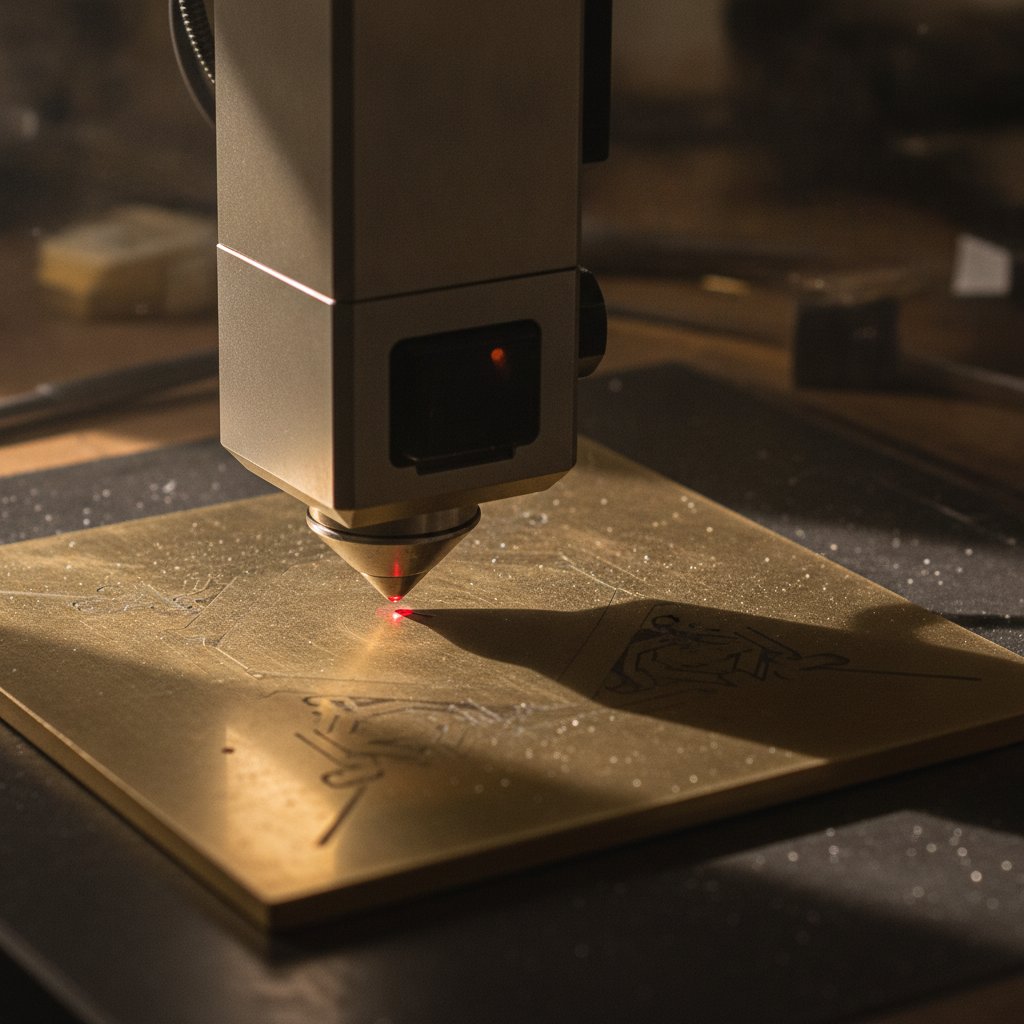
You've got a new fiber laser, you're trying to cut or engrave, and it's not working. You’re losing material, frustrated by stray lines or incomplete cuts, and you're staring at a screen full of parameters in EzCad3, wondering which knob to turn first. We've been there. For cutting and engraving sterling silver, the core levers are speed, power, frequency, and the number of passes. Which one you adjust, and in what order, changes everything.
Safety First (Always)
Before we dive into settings, a crucial reminder: a fiber marking laser is a Class 4 machine. The 1064 nm beam is invisible and causes permanent eye damage instantly. Always wear laser safety glasses rated for 1064 nm (with an OD suitable for your source power), and ensure everyone else in the room does too. Metal is a mirror, and reflections travel. Never leave a running job unattended. Metal marking produces fine particulate and metal fume; proper extraction with a filter is health equipment, not an optional extra. Physical enclosures and interlocks are your real safety layers; software is a convenience that can be disabled. Work safely.
Understanding the Core Settings: Speed, Power, Frequency
These three parameters determine the amount of energy deposited into your material at any given point. Think of them as a team.
Speed: How Fast the Light Moves
This is how fast the galvo mirrors drag the laser spot across your material, measured in millimeters per second (mm/s).
- Slower speed means the laser spends more time on each section of the material. This increases the energy deposited per millimeter, leading to a deeper and wider mark.
- Faster speed means less energy per millimeter, resulting in a shallower, finer mark.
However, there's a limit. Too slow, and you might start melting the material instead of ablating it cleanly, leading to poor quality. For engraving, our usual recipe runs at 700 mm/s, but for deeper enamel fills, we drop it to 600 mm/s. For cutting, we use 190 mm/s to ensure enough energy density.
Power: The Raw Strength
This is the average power output from your laser source, typically expressed as a percentage of its maximum wattage (e.g., 95 % of 100 W).
- Higher power generally means more energy available to do the work.
- Lower power means less energy.
While it seems intuitive to crank up the power for deeper results, it’s not always the first or best knob to turn, especially for cutting. Our cutting recipe for sterling silver uses 95 % power, but if a job isn't cutting through, increasing power further often just widens the kerf and heats the piece more, rather than making a clean cut.
Frequency: The Pulse of Your Laser
Frequency, measured in kilohertz (kHz), is the number of laser pulses per second. This is where it gets counter-intuitive, especially for MOPA sources.
- At a fixed average power, a higher frequency means the energy is divided into more, weaker individual pulses. This is good for fine surface marking and clean detail.
- A lower frequency means the same average power is divided into fewer, fatter, more energetic pulses. These fatter pulses dig deeper and are crucial for cutting and deep engraving.
We saw this clearly: our 100 W machine initially engraved shallower than a 30 W machine. The reason? We were at 40 kHz, the 30 W machine at 30 kHz. Their pulses were fatter. Dropping our frequency to 30 kHz for deep engraving made a huge difference. For cutting, however, we found the opposite: 60 kHz works best, while dropping it to 20 kHz cut worse.
If you have a MOPA source, you also control pulse width in nanoseconds (ns). Long pulses (150-250 ns) deposit more energy per shot and are good for depth and cutting. Short pulses (2-20 ns) are gentler, used for tasks like color marking on steel or marking plastics. Our silver engraving recipe uses 200 ns pulse width.
Passes (Loops): The Honest Way to Depth
The number of passes (or "loops" in some software) tells the machine to repeat the entire marking geometry multiple times. This is often the most predictable and controlled way to achieve depth, whether cutting or engraving.
- More passes mean more material is removed, layer by layer.
- Fewer passes mean less material removal.
For cutting, passes are our primary lever once speed, power, and frequency are optimized. Trying to cut a thick piece by simply turning up the power or slowing down the speed often leads to excessive heat, distortion, and a wider, sloppier cut. Adding passes allows the material to cool slightly between each sweep, leading to cleaner results.
Cutting Sterling Silver: Our Workshop's Numbers
Cutting sterling silver is one of the hardest jobs for a fiber laser, due to silver's high reflectivity and thermal conductivity. These are the settings we use daily on our 100 W MOPA machine with a 110 x 110 mm field lens. Remember, these are our measurements; always test on scrap of your own material.
Our common cutting recipe for sterling silver is: 95 % power, 190 mm/s, 60 kHz, with wobble enabled. The critical variable then becomes the number of passes:
| Sterling Silver Thickness | Passes (Our Machine) |
|---|---|
| 0.25 mm | ~2 |
| 0.3 mm | ~2 |
| 0.5 mm | ~6 |
| 0.8 mm | 17 |
| 0.9 mm | 21 |
| 1.0 mm | 28-29 |
These numbers follow a curve where passes increase rapidly with thickness. For instance, our measured 0.8 mm needs 17 passes, while 1.0 mm needs almost 30. Pass count, not power, is the main lever for getting through.
The Critical Role of Wobble
If you're cutting metal and the laser just engraves a line but won't go through, check your wobble settings. Wobble makes the beam oscillate across the cut line, widening the kerf. This wider channel is essential for ejecting molten metal and preventing it from re-welding behind the beam. Our working recipe uses a wobble diameter of 0.15 mm. We once had it set to 0.015 mm by mistake – a factor of ten error – and the machine simply wouldn't cut, even with correct power and passes. It's a surprisingly common and misleading failure.
Gold: A Different Story
Gold is significantly easier to cut than silver because it absorbs more of the laser's energy. The same recipe (95 % power, 190 mm/s, 60 kHz, wobble on) works, but with far fewer passes. Our internal derived table, used as a starting point for gold, suggests roughly half the passes needed for silver of the same thickness. These are derived estimates, not direct measurements, and must be proved on scrap.
| Sheet thickness | Gold Passes (Starting Point) |
|---|---|
| 0.25 - 0.4 mm | 2 |
| 0.5 mm | 3 |
| 0.6 mm | 4 |
| 0.7 mm | 6 |
| 0.8 mm | 9 |
| 0.9 mm | 11 |
| 1.0 mm | 14 |
Always start with fewer passes and work up. Too many passes can distort thin sections and widen the kerf unnecessarily. Remember, different karats and alloys will behave differently.
Engraving: When Depth and Detail Matter
Engraving parameters are similar, but the emphasis shifts depending on whether you want deep recesses for enamel, or fine detail for photographs.
Deep Engraving for Enamel Filling
For jewelry that will be filled with enamel, you need real depth to hold the material. Our confirmed recipe for deep engraving in silver is: 100 % power, 600 mm/s, 30 kHz, 10 passes. The key here was dropping the frequency to 30 kHz, which gives those fatter, more energetic pulses that dig deeper. More passes at this recipe are the predictable way to go even deeper, crucial for being able to sand and polish the enamel flush with the metal surface.
For more on this, you might find our article Deep Engraving Silver for Enamel: Our Workshop Recipe useful.
Engraving Photographs and Fine Artwork
This is arguably the hardest job on a fiber laser. The detail in an image often lies in the tiny unmarked (white) gaps. Anything that closes these gaps destroys the picture.
- Spot Width Compensation: Your laser spot has a physical width. Every marked line comes out fatter. To preserve detail, we shrink the area to be marked by about half a spot diameter before marking. We use 0.05 mm as a default.
- Jumps and Stray Lines: If your engraving has faint, unwanted lines, they are usually the "jumps" – the travel moves when the beam is supposed to be off. We found two main culprits:
- Jumping too slowly: We initially thought a slow jump would leak less, but it gives the beam's tail time to drag a visible line. Increasing jump speed to 2000 mm/s (EzCad3's default) made the marks disappear.
- Laser Off TC too short: This delay ensures the beam is truly off before the head moves. If it's too short, the machine starts jumping with a live beam. EzCad3's default of 100 µs works well.
Ordering the fill so that jumps are short and land on already-marked areas also significantly reduces visible residue.
Calibrating a New Material: Our Method
When faced with a new material or thickness, guessing is expensive. Here's our boring, but effective, process:
- Always use scrap. Never calibrate on a real piece.
- Change one variable at a time. Create a grid of squares on your scrap. For example, vary speed along one axis and power along the other. Engrave the settings next to each square. This tells you more in ten minutes than hours of guessing.
- For cutting, find the minimum passes. Determine the pass count that just barely cuts through, then add a small margin (1-2 passes). Going far beyond this widens the kerf, distorts thin sections, and wastes time.
- Document everything. Immediately write down your winning recipe: material, thickness, power, speed, frequency, passes, and focus height. A recipe is useless if it's not reproducible. You can find where EzCad3 stores these crucial machine settings in its
PARAMfolder, as we discussed in Inside EzCad3's PARAM folder: where your machine's real settings live. - Recalibrate when needed. New material supplier, different alloy, a new jig, or cleaned optics all warrant a fresh calibration.
Remember, recipes are not transferable between metals. Gold needs its own calibration points, just as silver does.
Practical Takeaways: Which Knob First?
When you're trying to dial in a new setting or troubleshoot an issue, here's our general order of operations for the core parameters:
- Start with Power and Speed: Set your power to a high, but not maximum, comfortable level (e.g., 95-100 %). Then, adjust speed to get a visible, but not necessarily deep, mark. This establishes a baseline energy input.
- Adjust Frequency (especially for MOPA sources):
- For cutting and deep engraving, lower the frequency (e.g., 30 kHz - 60 kHz for cutting, 30 kHz for deep engraving on silver) to get fatter, more energetic pulses. This is often the biggest lever for depth.
- For fine surface marking or detail, a higher frequency (e.g., 40 kHz or higher) will give you weaker, gentler pulses.
- Use Passes for Depth: Once your speed, power, and frequency are roughly tuned for the desired energy per pulse, use the number of passes as your primary control for achieving the target depth, whether it's cutting through or deep engraving. This offers the most control and helps manage heat.
- Don't Forget Wobble (for cutting): If you're cutting and getting only a surface mark, immediately check your wobble diameter. A wobble that is too small (e.g., 0.015 mm instead of 0.15 mm) will prevent the cut from opening, regardless of other settings.
- Address Spot Width and Jumps (for engraving): If your engravings are blurry, losing detail, or showing stray lines, these are critical secondary adjustments that make a huge difference. Shrink the marked area by 0.04-0.06 mm and ensure your jump speed is high (2000 mm/s) and Laser Off TC is sufficient (100 µs).
Every material and machine combination is unique, but by understanding what each parameter actually does and approaching calibration systematically, you'll spend less time guessing and more time making beautiful jewelry.