Understanding Your Free HagoLaser Licence: Node-Locked and Renewable
When you download HagoLaser, you get a free, one-year licence. But what does "node-locked" mean, and how do you renew it? We explain the simple process for your workshop.
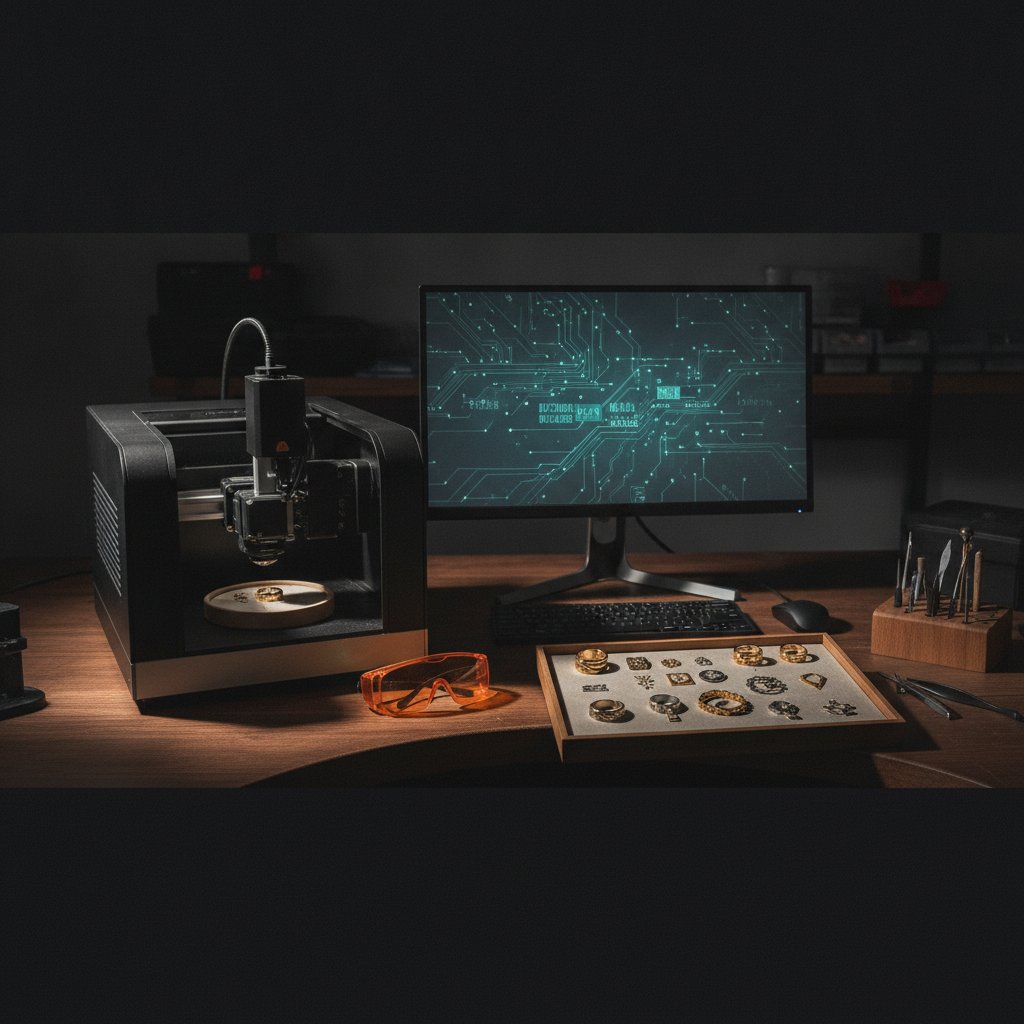
If you have a galvo fiber laser with a JCZ/BJJCZ DLC2 board, you are probably familiar with EzCad3. You also know that third-party software support for these machines is thin. That is exactly the gap HagoLaser fills: a free laser software licence that talks directly to your board. It is node-locked to your specific machine, and it renews annually from right inside the program, at no cost.
Here in our jewelry workshop in Málaga, Spain, we built HagoLaser because we needed it for our daily work cutting and engraving sterling silver. We understand the confusion around software licenses, especially when you are used to the dongle-based approach of EzCad3. This guide will walk you through what our licence means for you on the bench.
Before we go any further, a quick but critical reminder about safety. A fiber marking laser is a Class 4 machine. The beam and its reflections cause permanent eye damage instantly and silently, and the 1064 nm wavelength is invisible, so you will never see the beam that blinds you. Laser safety glasses rated for 1064 nm (with an OD suitable for your source power) must be worn by everyone in the room, always. Metal is a mirror, and reflections go everywhere. Never leave a running job unattended. Metal marking produces metal fume and fine particulate – extraction with a proper filter is health equipment, not an accessory. Physical interlocks and enclosures are the real safety layer; software interlocks are a convenience and can be switched off – ours can. Never treat software as your protection. For a deeper dive, read our Class 4 Laser Safety: The Honest Workshop Checklist for Fiber Lasers.
HagoLaser's Free Licence: What 'Node-Locked' Means
The core concept of the HagoLaser licence is that it is node-locked. This term might sound technical, but it is quite simple once you understand it. It means the software is authorized to run on one specific piece of hardware – your laser's controller board – and cannot be easily transferred to another machine.
Understanding the "Node-Locked" Concept
Think of it like this: your car has a Vehicle Identification Number (VIN). That VIN identifies that exact car, not any other car of the same model. Your driving licence allows you to drive, but the VIN is physically stamped onto and identifies which car. HagoLaser's free laser software licence works similarly: it is tied to your specific JCZ DLC2 controller board. That board is the "node."
Another analogy is a house address. You might have many keys (different software on different computers), but the address uniquely identifies that specific house. The HagoLaser licence identifies your specific laser machine.
This approach has practical benefits for a working workshop. Unlike software that requires a USB dongle (like EzCad3) or constant internet access, HagoLaser uses your laser's controller board itself as the key. This means:
- No physical dongle to lose, break, or forget.
- No internet connection required for daily operation once the licence is activated.
- It makes the software more resistant to unauthorized sharing, helping us keep it free and in beta for genuine users like you.
Our workshop built HagoLaser because we needed it for our own production, not to sell software. Because of this, it is offered free of charge, with the understanding that it is currently in beta and the user carries the risk inherent in operating industrial machinery.
Getting HagoLaser and Your First Free Licence
The process to get started with HagoLaser and acquire your first free licence is designed to be as straightforward as possible, especially since we fixed the driver issues that used to complicate things.
Downloading HagoLaser
To get started, you can find the HagoLaser download on our website. You will go through a simple email verification step, and then you will receive the installer for the Windows desktop program.
The USB Driver: No More Zadig
HagoLaser communicates directly with your JCZ DLC2 board over USB. This requires a generic WinUSB driver on the laser's USB device. We know this used to be a point of friction for many users, often involving confusing steps with tools like Zadig. We fixed that.
Since HagoLaser v3.63, the installer handles the USB driver installation automatically. Just leave the "Install the USB driver" box ticked, accept the Windows permission prompt, and HagoLaser will see your board when it opens. You will not have to pick devices from any list or read obscure names.
If you are already using LightBurn with your machine, there is nothing to do at all. LightBurn installs the same WinUSB driver, so HagoLaser will work immediately. The two programs live together fine on the same machine.
In the rare event HagoLaser cannot see the board (perhaps you unticked the box during installation, or Windows somehow reverted to the factory driver), simply press the "Connect" button in HagoLaser. A notice will appear with a button, "Install the driver now." One click, accept the Windows prompt, and you are ready.
First-Run Wizard and Licence Activation
When you first launch HagoLaser, a wizard will guide you through the initial setup. This wizard is key to making the software usable on day one. It finds your existing EzCad3 installation and imports:
- Your real focus height from Motors.ini.
- Your galvo correction data from your .cor file.
- Your EzCad3 pens as material recipes into HagoLaser's materials library.
It also installs our HagoLaser color palette into Inkscape, so your drawing colors will immediately match the operations. This wizard is how HagoLaser becomes specific to your machine, using your own calibrations without us ever shipping or redistributing any JCZ files.
Once HagoLaser detects your unique JCZ DLC2 board and imports your settings, it will generate a licence request. This request is sent via our website (after you verify your email), and you will receive your free, one-year node-locked licence.
Renewing Your Free Licence
The HagoLaser licence is valid for one year. This is not a trial, and it does not cost anything to renew. It is a simple process done from directly within the program.
When your licence is nearing its expiration, HagoLaser will notify you. You simply click a button within the software to request a renewal. This ensures you always have access to the latest beta version and helps us understand active usage to prioritize bug fixes and new features for the community.
Think of it like a free annual check-in for your software. It keeps you on a reasonably current version and keeps us connected to our users. There are no fees, no hidden costs, and no complicated forms.
Switching Between HagoLaser and EzCad3
A common question is how HagoLaser coexists with EzCad3, especially regarding the USB driver. It is important to remember that while the WinUSB driver is on your board, EzCad3 will not be able to see your laser. The two drivers are not compatible simultaneously.
However, switching between HagoLaser and EzCad3 is now a simple button click, not a complex procedure. In HagoLaser (v3.65 and newer), go to the «USB Driver» menu and select "Give the laser back to EzCad3". Once you click this, you must switch your laser machine off and then on again. This power cycle allows the board to pick up the correct factory driver for EzCad3.
When you want to use HagoLaser again, simply go back to the same menu and click the button to put the WinUSB driver back. Remember to power cycle your machine after each driver change.
Important: You should never try to revert the driver by uninstalling the device in Device Manager. That advice is outdated and ineffective, as our driver package remains in the Windows driver store, and Windows will simply reinstall it automatically. Our integrated button is the only reliable way to switch drivers.
The HagoLaser Workflow: How It Connects to Your Licence
The node-locked licence ensures that your specific machine is ready to implement the efficient workflow we developed for jewelry production.
Drawing the Job by Color
Our workflow starts with Inkscape (a free vector drawing program). You design your piece as an SVG, using flat colors to define operations. Our installer drops a HagoLaser palette into Inkscape's user palette folder. After installation, make sure to select it from the small arrow button at the right-hand end of Inkscape's color strip.
The three default colors that matter in our workshop are:
- Black #000000: Inner Cut
- Blue #0000ff: Engrave
- Purple #8800ff: Outer Cut
These are defaults, not fixed rules. You can assign any color to any operation in the Colors library. The critical part is that your drawing should not contain any colors that you have not assigned to an operation; those lines simply will not be marked.
The distinction between inner and outer cuts is crucial for real pieces: interior details (holes, letters) are cut while the material is still held by the surrounding sheet, and the final outline that frees the piece is cut last. Reversing this order often causes the part to shift mid-job.
This color-based approach is fast because the drawing is the job. There are no layers to configure or complex dialogs to navigate for each new design. SVG fills automatically become engraved fills, eliminating manual hatching.
A useful trick: if you draw a circle or alignment mark in a color not assigned to any operation, HagoLaser will project it with the red aiming light without actually marking it. This is excellent for jig alignment, ensuring the laser never touches your reference lines.
The 1.svg Workflow
In our workshop, we keep a single working SVG file – ours is literally called 1.svg – loaded in HagoLaser. We draw the next job in that same file in Inkscape, save it, and then press "Mark" in HagoLaser. There is no re-importing, no file dialog, and no export step. This works because HagoLaser re-reads the SVG from disk every time you mark. Save in Inkscape, mark in HagoLaser: what appears on the metal is what you last saved. If you press "Mark" and get the previous design, you simply forgot to save in Inkscape. That is the entire failure mode.
You should always design in real millimeters. A shape drawn at 20 mm wide in Inkscape will be marked at 20 mm wide by HagoLaser; your document is the workpiece, not a canvas to scale later.
Materials Library
HagoLaser includes a materials library where you can define recipes for different materials and thicknesses. When you select "Silver 0.8 mm," for example, every color (inner cut, engrave, outer cut) automatically loads its specific power, speed, frequency, and number of passes. This library is initially populated by the pens imported from your own EzCad3 installation during the first-run wizard.
You can also assign Textures by Color: One Drawing, Multiple Laser Operations for Jewelry. This allows you to apply a hammered look, a linear brush, or other tiled surface finishes to different parts of your design, all controlled by color in your SVG.
Practical Steps: What to Do First
Here are the practical takeaways from our workshop, things we wish someone had told us two years ago when we were losing silver to problems nobody had written down:
- Back Up Your EzCad3 PARAM Folder: This folder contains your machine's calibration files (Motors.ini, MarkParamlib.ini, .cor, LaserPW.ini). These are priceless. Back them up to a USB stick or cloud storage before you touch anything. Our guide on Building an EzCad3 Parameter Library That Survives Reinstallation explains why this is vital.
- Download and Install HagoLaser: Go to hagolaser.com. Let the installer automatically handle the USB driver. Accept the Windows prompts.
- Run the First-Time Wizard: Let HagoLaser import your existing EzCad3 settings. This makes the transition smooth and ensures HagoLaser uses your machine's unique calibration.
- Install the Inkscape Palette: In Inkscape, open the palette list (small arrow at the bottom right) and select HagoLaser. Use these swatches for your designs.
- Start Simple: Draw some text in blue #0000ff in Inkscape, save it to a file like 1.svg, and press "Mark" in HagoLaser. Then try a black #000000 line.
- Always Test on Scrap: Our measured numbers are for our machine, a 100 W MOPA source with a 110 x 110 mm F-theta lens, cutting 0.25 mm to 1 mm sterling silver. Your machine will behave differently. Always prove new settings on scrap material before you touch a real piece.