HagoLaser vs EzCad3: Choosing Your Tool for Daily Silver Work
For jewelry workshops using galvo fiber lasers, the choice of software impacts daily workflow directly. We compare EzCad3, the standard, with HagoLaser, our custom solution for silver.
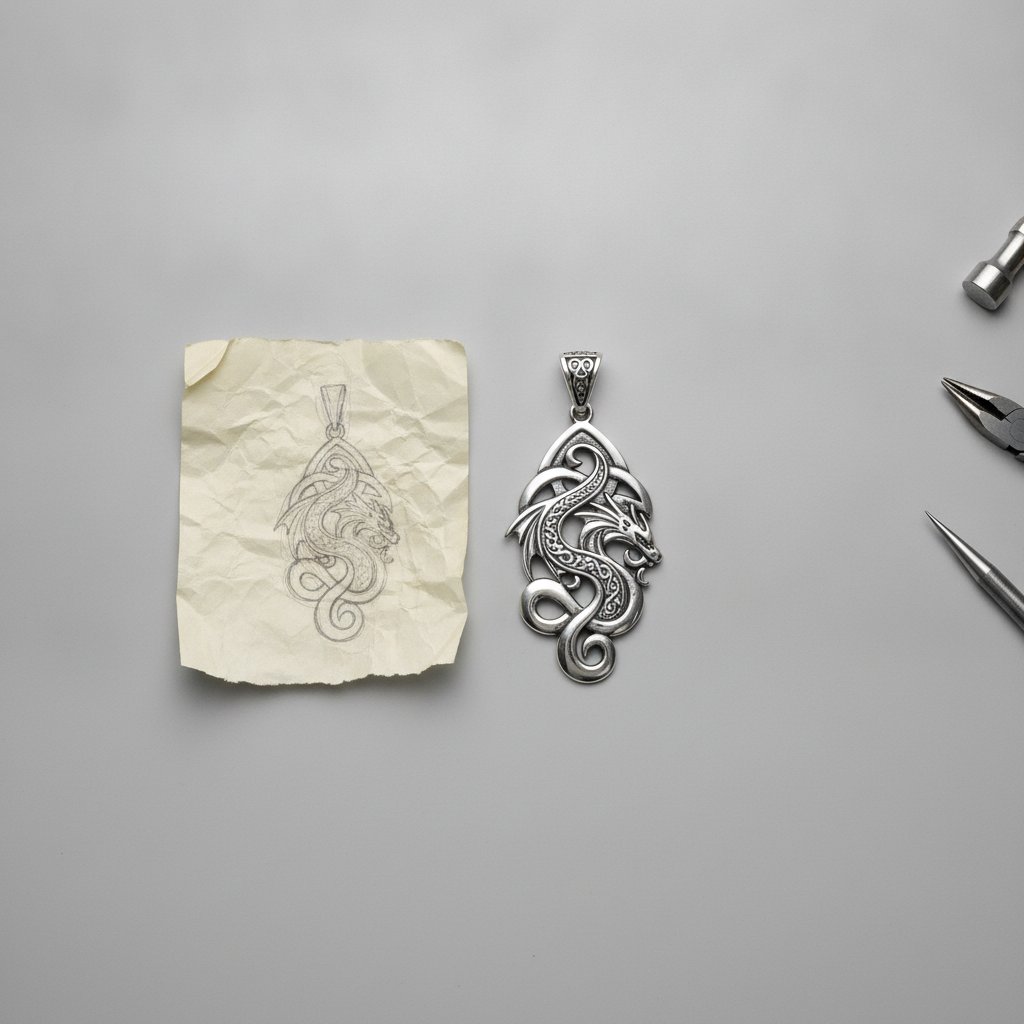
In our jewelry workshop in Málaga, we cut and engrave sterling silver on a galvo fiber laser every single working day. This machine, like most affordable fiber lasers, came with a BJJCZ DLC2 controller board and EzCad3 software. EzCad3 is what drives the hardware, and it does that job well. But after losing a lot of silver to workflow problems nobody had written down, we built HagoLaser: a free alternative focused on the specific demands of daily jewelry production. This is our honest comparison of the two, based on our own experience.
The Daily Reality of a Jewelry Workshop
Our work means a constant stream of small, intricate pieces that need precise cutting and engraving. Every millimeter, every pass, every millisecond counts when you are working with precious metals. A fiber marking laser, such as ours with its 100 W MOPA source, is a powerful tool, but it is also a Class 4 laser. This means the invisible 1064 nm beam and its reflections cause permanent eye damage instantly. Laser safety glasses, rated for 1064 nm with an OD suitable for your source power, are non-negotiable for everyone in the room. Proper extraction with a suitable filter for metal fume and fine particulate is health equipment, not an accessory. Never leave a running job unattended. Physical interlocks and enclosures are the real safety layer; software interlocks are a convenience and can be switched off.
The core of these machines is the JCZ controller board. This board takes a list of vector commands from the PC and drives the galvos and laser source in real time. EzCad3 is the software that typically communicates with it, and it manages all the critical machine settings. For a buyer, this often means you are, in practice, married to the software that came in the box because third-party support for the DLC2 generation is thin, as the SDK is licensed separately by JCZ.
EzCad3: The Foundation and Its Limitations for Daily Production
EzCad3 is robust software that capably controls the laser hardware. It is what our machine shipped with, and it handles everything from basic marking to complex 3D relief work. All your machine's critical configurations – axis data, focus height, parameter libraries, and galvo correction – live in its PARAM folder. These files, like Motors.ini, MarkParamlib.ini, and your .cor correction file, are your machine's calibration and should be backed up regularly. We do not claim EzCad3 is bad software; it is simply not designed for the specific, high-volume, repetitive workflow of our jewelry shop.
Where EzCad3 creates friction for us is in its daily use for dozens of small jobs:
- File Handling: Each new design typically means importing a new file, checking layers, and often re-hatching fills.
- Parameter Management: While it has a parameter library, ensuring the correct "pen" is selected for each line type (cut, engrave) and material on every new design adds steps and opportunities for error.
- Interface: Designed for flexibility, its interface can feel heavy when you just need to quickly fire off the next piece.
- Design Integration: There is no direct, dynamic link to a CAD program. Changes in your design software require a re-export and re-import into EzCad3.
HagoLaser: A Workflow-First Approach for Jewelry
We wrote HagoLaser because we needed it. It is a Windows desktop program for galvo fiber lasers with JCZ DLC2 boards, talking directly to the board over USB. It is currently in beta and is offered free, with a one-year license renewable from inside the program. Since this is real industrial machinery, the user carries the risk. HagoLaser is not affiliated with, endorsed by, or connected to Beijing JCZ Technology Co., Ltd. (BJJCZ) or any laser manufacturer.
The Color Workflow: Your Drawing Is the Job
Our core innovation is a color-based workflow. We design our pieces in Inkscape as an SVG (which is free software), using flat colors to denote operations. This means the drawing itself carries the instructions for the laser, eliminating layers and dialogs. The three default colors that matter in our setup are:
#000000(black) = inner cut#0000ff(blue) = engrave#8800ff(purple) = outer cut
These are defaults; any color can be assigned to any operation in the Colors library. SVG fills become engraved fills automatically. A unique benefit is that any color present in the drawing but not assigned to an active operation will still project with the red aiming light without being marked. This is genuinely useful for aligning pieces in a jig without marking them.
The distinction between inner and outer cuts is crucial for real pieces: holes and interior details are cut while the part is still held by the surrounding sheet, and the outer outline that frees the piece is cut last. Getting this sequence wrong can cause the part to shift mid-job.
Working with Inkscape Day to Day
The daily loop with HagoLaser and Inkscape is designed for speed:
- Install the Palette: Our installer drops a
HagoLaserpalette into Inkscape. Select it once from the small arrow button at the end of Inkscape's color strip. The swatches are then labeled "inner cut," "engrave," "outer cut." If you mark and nothing happens, check you're using these swatches, not Inkscape's default colors. - Keep One File Open: We keep a single SVG file – ours is simply
1.svg– loaded in HagoLaser. We draw the next job in Inkscape, save the SVG, and then press "Mark" in HagoLaser. There is no re-importing, no file dialog, no export step. - Save in Inkscape, Mark in HagoLaser: HagoLaser re-reads the SVG from disk every time it marks. If you press Mark and get the previous design, it means you did not save your changes in Inkscape.
Design in real millimeters. What you draw at 20 mm wide is marked 20 mm wide; the document is the workpiece, not a canvas to be scaled later.
Engraving and Cutting Silver: Parameters and Practicalities
Our machine uses a 110 x 110 mm F-theta lens. For jewelry, a smaller field is generally better as it concentrates power into a smaller spot, allowing for finer detail and more aggressive cutting. The values we use for deep engraving sterling silver are detailed below. It is important to remember these are specific to our machine and material; always prove settings on scrap first.
Here are the parameters from an EzCad3 pen we use for silver engraving:
| Parameter | Value | Effect on Silver |
|---|---|---|
| Speed | 700 mm/s | How fast the galvos move. Slower for deeper marks. |
| Power | 95 % | Average power from the source. High for deep work. |
| Frequency | 40 kHz | Pulses per second. Lower frequency means more energy per pulse. |
| Pulse width | 200 ns | Longer pulses (MOPA source) put more energy into each shot for digging. See also: Pulse Width in Nanoseconds: What It Does to Your Mark. |
| Passes (LOOP) | 5 | How many times the geometry is repeated. Our primary way to achieve depth. |
| Jump speed | 2000 mm/s | How fast the head moves between marks with the beam off. Too slow can cause stray lines. |
| Laser Off TC | 100 µs | Delay after a mark before jumping. Prevents the beam from drawing faint lines during jumps. |
| Polygon TC | 100 | Settling delay at corners. Trades sharpness for speed. |
| Min/Max jump TC | 10/85 | Small delays at the start/end of jumps. |
| Contour pass | Enabled | An extra outline pass around filled areas. Makes small text crisper and slightly thickens the mark. |
HagoLaser also supports 3D textures: instead of just engraving a picture, you can apply a tiled height pattern to a region. This is useful for creating hammered looks, brush finishes, or fabric weaves across a surface. Textures are assigned per color, so one part of a design can be cut, another engraved flat, and another given a 3D texture, all from the same drawing.
Setting Up HagoLaser: From EzCad3 to a New Flow
We designed HagoLaser to be usable on day one for anyone already running EzCad3. The first-run wizard finds your EzCad3 installation and imports your existing machine settings: your real focus height from Motors.ini, your galvo correction from the .cor file, and your parameter "pens" as material recipes. It never ships or redistributes any JCZ files; it just reads what is already on your machine. This also includes installing the Inkscape color palette so your drawing colors match the operations.
The USB Driver Question
To talk to the DLC2 board directly, HagoLaser needs the generic WinUSB driver. This used to be a common point of friction, but it is not anymore. Since v3.63, the HagoLaser installer does it by itself: just leave the "Install the USB driver" box ticked, accept the Windows permission prompt, and HagoLaser will see the board. If you are already using LightBurn, there is nothing to do; LightBurn puts the same WinUSB driver on the board, and the two programs coexist fine. If HagoLaser cannot see the board, press "Connect," and a button labeled "Install the driver now" will appear. One click, accept the prompt, and you are done. For more details, see HagoLaser Install: The USB Driver Question, Answered Up Front.
It is important to understand that while WinUSB is on the board, EzCad3 will not see the laser. To switch back to EzCad3, HagoLaser (v3.65+) has a "USB Driver" menu with a button labeled "Give the laser back to EzCad3." Click it, then switch your machine off and on. The same button can put it back for HagoLaser. Never try to revert the driver by uninstalling the device in Device Manager; that advice is obsolete and will not work.
Beyond the Machine: Finishing and Handling
The process does not end when the laser finishes. Cut or deep-engrave silver, and the edges will come out oxidized and dark. The piece off the machine is not the piece you sell. Our routine is to polish and bring the shine back after marking. This is a normal part of the job. Any design has to survive polishing; fine or shallow detail will be softened or removed. This is another argument for real engraving depth rather than a mere surface mark. Always plan for deep work first, then finishing. Polishing first and marking afterwards means marking on a surface you then cannot touch up.
Holding small parts is simpler than newcomers often assume. The laser beam has no significant mechanical force, so pieces sit on the platform and stay put. What is critical is that the part sits flat and at the correct focus height. A part that rocks will go out of focus, leading to uneven cuts or engravings. The only real risk is when a fully cut part comes free; it will not fly away, but it can drop or shift. For this reason, any operation that fully frees a part should be the last on that piece.
Choosing Your Tool: Practical Takeaways
Both EzCad3 and HagoLaser have their place in our workshop, depending on the task. EzCad3 is the robust, comprehensive software for initial machine setup, calibration, and complex, less repetitive tasks that might benefit from its extensive feature set and layer management. It is what comes with the machine, and it is stable.
HagoLaser, being free and in beta, is built for the rapid, repetitive workflow of jewelry production. If your daily work involves cutting and engraving many small silver pieces, where speed, consistency, and a direct design-to-machine loop are paramount, HagoLaser streamlines that process significantly. Its color-based workflow, tight Inkscape integration, and materials library let us move from design to finished piece with fewer clicks and less room for error. It is the tool we wished we had when we were losing silver to inefficient workflows. Use the tool that best fits your daily needs.