Textures by Color: One Drawing, Multiple Laser Operations for Jewelry
Stop re-importing files and configuring layers. Our workshop workflow lets you define cuts, engravings, and 3D textures directly in your Inkscape drawing using specific colors, then fire it all with a single click.
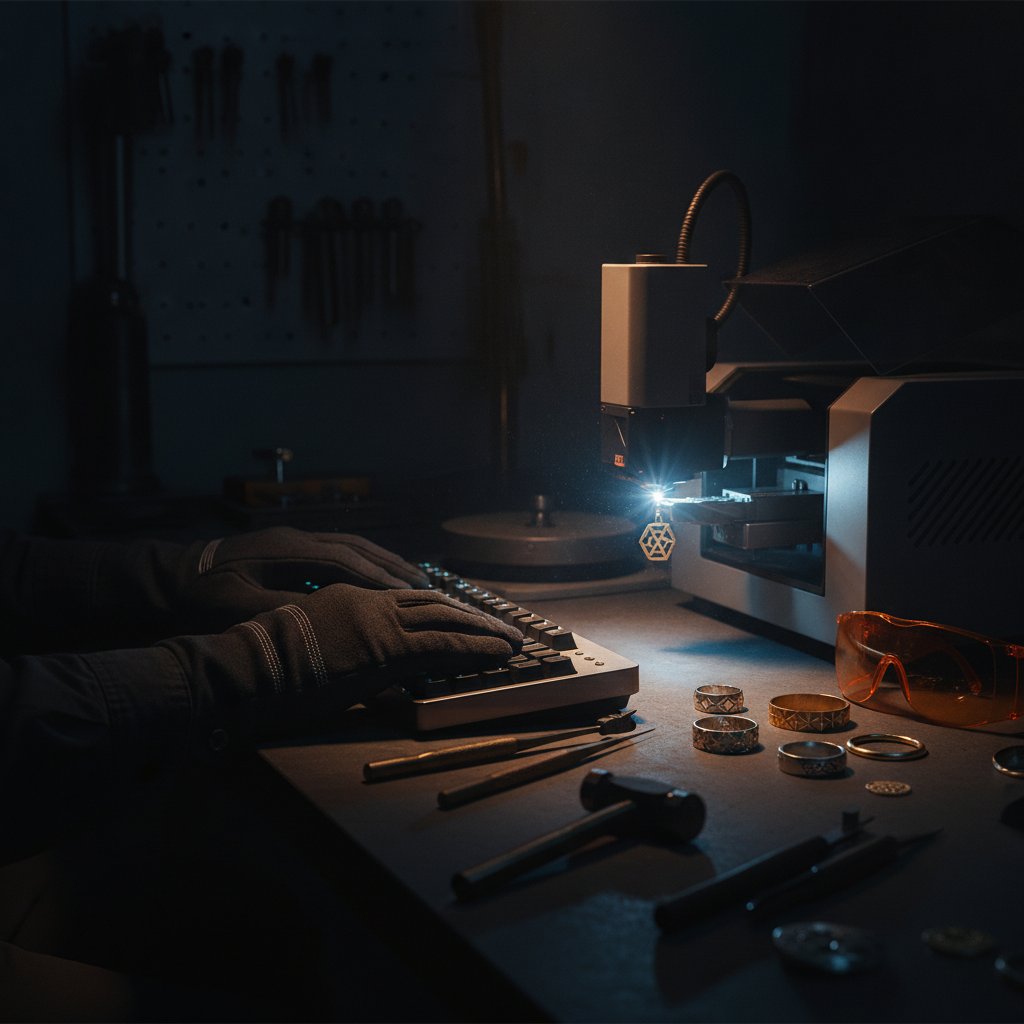
Two years ago, we were losing far too much silver to jobs that went wrong halfway through. We wanted to cut, engrave, and add textured surfaces to a single piece without endless file exports or reconfiguring the machine for every step. The solution we built, HagoLaser, lets you define all these operations directly in your drawing using simple colors.
This guide explains our workshop workflow for creating complex jewelry pieces with different laser operations – cutting, engraving, and 3D textures – all from one SVG drawing. You can set up your machine and be marking like this today.
The Problem: Managing Complexity on the Laser
Every fiber laser job on a JCZ board means a long list of parameters: power, speed, frequency, hatching, number of passes, Z-height. For a simple cut, that is fine. For a piece that needs an interior cut, a surface engrave, and a deep, textured finish, it becomes a multi-step nightmare.
You might have one file for the cut, another for the engraving, and then try to remember which focus height or power setting to use for each step. Get the order wrong, and a piece can shift or fall. Get the settings wrong, and you have just ruined a piece of silver. We needed a system where the design was the job, with all operations defined directly by what we drew.
Our Solution: Drawing with Operations, Not Just Colors
In our workshop, we design everything in Inkscape, a free vector drawing program. Instead of picking arbitrary colors, we use a specific palette where each color tells the laser what to do. HagoLaser reads these colors directly from your SVG file and applies the correct machine settings from our materials library. This means we draw the next job in the same file, save, and press Mark – that is the entire workflow.
We keep one working SVG file, literally named 1.svg. We draw the next job in it, save, and press Mark in HagoLaser. If you press Mark and get the previous design, it means you forgot to save in Inkscape. That is the only real failure mode.
The HagoLaser Color Palette
HagoLaser installs a custom palette in Inkscape for you. Once installed, select it by clicking the small arrow button at the right end of Inkscape's color strip and choosing HagoLaser. The first three swatches are labeled with their function. These are our default assignments, but you can change them in HagoLaser's Colors library to match your own existing codes:
- Black (
#000000): Inner Cut. Use this for holes, interior details, or letters that need to be fully cut out. These are always cut first, while the piece is still held by the surrounding material. - Blue (
#0000ff): Engrave. This is for surface marks, deep engraving, or 3D textures. If your SVG path has a fill, HagoLaser automatically hatches it. - Purple (
#8800ff): Outer Cut. This is the final cut that frees the piece from the sheet. It always runs last.
Any color present in your drawing but not assigned to an active operation will project with the red aiming light without being marked. This is useful for aligning parts in a jig; you can draw a temporary circle in an unused color, align your piece to it, and know the laser won't touch it.
It is important to use the specific colors from the HagoLaser palette. Inkscape's default blue, for example, is not #0000ff, and if you use it, HagoLaser will not recognize it as an engrave operation.
Introducing Textures: 3D Finishes by Color
Not every engraving is a picture. Many jewelry pieces benefit from a surface texture: a hammered effect, a linear brush, or a stippled finish. In HagoLaser, these are handled as a type of 3D relief work, but applied as a tiled height pattern across a region, rather than a unique image. This means you can assign a texture to a specific color, just like a cut or a flat engrave.
To assign a texture, you open HagoLaser's materials library, select the material (e.g., "Silver 0.8 mm"), and then for the "Engrave" color (our default blue, #0000ff), you can choose a texture from the list. The software then applies that texture to any blue area in your drawing.
If you're new to 3D relief, textures are a great starting point. The eye doesn't have a "correct" reference for a texture, so small variations read as handmade rather than as defects, making them more forgiving than engraving a photograph.
The Mechanics of 3D Relief and Textures
3D relief work removes material in layers. HagoLaser translates the greyscale values of your texture pattern into varying depths. The lighter areas get fewer passes, the darker areas get more.
Here are some of the critical lessons we learned:
- Depth is not what you ask for. On our machine (sterling silver, 95% power, 700 mm/s, 40 kHz, 0.03 mm Z step), we measured about 18 µm removed per layer. Asking for 1 mm of depth often produced only 0.6 mm. This calibration is specific to your exact recipe; change material, power, speed, frequency, or step, and you must measure again.
- Terraces are a classic artifact. Simple layered relief leaves visible contour lines on gentle slopes. You cannot fix this by dropping Z in smaller steps, as the laser stops working usefully after about a millimeter of defocus. The real smoothing comes from a final pass at the focus height that modulates energy by depth instead of moving Z. Deep areas are engraved in every level, shallow areas in fewer, creating a continuous gradient that melts the steps together.
- Hard thresholds delete small features. If a layer either engraves a spot or does not, any feature shallower than one layer step vanishes completely. We saw features under about 0.05 mm disappear entirely. HagoLaser's half-step dithering of the layer masks prevents this, bringing sub-step detail back and blending terraces. This does cost more segments, so the job runs longer, roughly 2.7 times more.
- Edge compensation is crucial. Eroding each layer mask by half a spot size gives crisp walls and sharp features instead of a soft, melted mound. For silver, we found the 0.04-0.06 mm range worked well.
- There is a resolution ceiling. The finer the step, the bigger the raster the software must hold. A 0.02 mm step is realistic on small jewelry-sized pieces; larger pieces may require a coarser step.
Getting the depth calibration right (how many microns per layer) is the first step. Chasing smoothness before you have consistent depth wastes a lot of metal and time.
A Note on Safety
A fiber marking laser is a Class 4 machine. This is not a toy. The invisible 1064 nm beam and its reflections cause permanent eye damage instantly and silently. Laser safety glasses rated for 1064 nm (with an OD suitable for your source power) must be worn by everyone in the room, always. Metal is a mirror; reflections can go anywhere.
Never leave a running job unattended. Metal marking produces metal fume and fine particulate – extraction with a proper filter is health equipment, not an accessory. Physical interlocks and enclosures are the real safety layer; software interlocks are a convenience and can be switched off.
Working with Your Machine and HagoLaser
HagoLaser is a Windows desktop program for galvo fiber lasers with JCZ/BJJCZ DLC2 boards, the machines that normally run EzCad3. It talks directly to your board over USB.
It's free, currently in beta, and offered as-is. We built it because we needed it for our own workshop. It works by reading your machine's configuration files directly – your Motors.ini for focus height, your MarkParamlib.ini for parameters, and your galvo correction file. It never ships or redistributes any JCZ files; it uses what is already on your machine.
Connecting to Your Laser: The USB Driver
To talk to the board directly, HagoLaser needs the generic WinUSB driver on your laser's USB device. Since v3.63, the installer handles this automatically: just leave the "Install the USB driver" box ticked. If you're already using LightBurn, there's nothing to do; LightBurn uses the same WinUSB driver, and HagoLaser will work immediately.
If HagoLaser ever cannot see the board, press the "Connect" button in the program, and a notice will appear with a button, "Install the driver now." One click, accept the Windows prompt, and you're done.
While WinUSB is on the board, EzCad3 will not see the laser. To switch back, simply go to HagoLaser's «USB Driver» menu and press "Give the laser back to EzCad3" (v3.65), then switch your machine off and on. The same button puts it back to HagoLaser when you need it.
After the Laser: Polishing and Finishing
This is the part nobody puts in the videos. When you cut or deep-engrave silver, the edges come out oxidized and dark. The piece off the machine is not the piece you sell. Our routine is to polish and bring the shine back after marking. This is a normal part of the job.
You must plan for this: any design has to survive polishing. Detail that is too fine or too shallow will be softened or removed by the polishing itself. This is another argument for achieving real engraving depth rather than just a surface mark.
Practical Takeaways for Today
If you want to start using this workflow today, here is the order we would recommend:
- Install HagoLaser. Let the installer handle the USB driver.
- Run the first-run wizard. This imports your existing EzCad3 settings into HagoLaser's materials library, including your machine's real focus height and galvo correction. Back up your EzCad3 parameter files first; see our guide on Back Up Your EzCad3: The Four Files That Are Your Calibration.
- Install the Inkscape palette. Open Inkscape, click the arrow at the end of the color strip, and select
HagoLaser. - Calibrate your depth. Before chasing textures, measure how many microns your laser removes per layer for your chosen material and settings. On our machine, for example, we found silver at 95% power, 700 mm/s, 40 kHz, with a 0.03 mm Z step removed about 18 µm. Your numbers will differ. This is crucial for consistent 3D results; see our article Greyscale to Real Depth: 3D Relief Engraving with HagoLaser for more detail.
- Experiment with textures. Start with simple patterns. Create a blue rectangle in Inkscape, apply a texture to the blue color in HagoLaser's materials library, and test it on scrap metal. Textures are more forgiving than photo engraving.
- Familiarize yourself with fills. HagoLaser automatically hatches SVG fills. Understanding how your laser "paints" an area is key to good results; read our post Hatch, Fill, Contour: How Your Fiber Laser "Paints" a Solid Area.
This workflow has saved us countless hours and reduced scrap significantly. The ability to design the entire job in one file, use a visual color code for operations, and have the software handle the machine settings, means we spend less time on configuration and more time on creating jewelry.