It Cut Fine Yesterday: Your Laser Focus Checklist
Yesterday your laser cut perfectly, but today it’s just scratching the surface. Before you blame the machine, check these common causes for focus drift and weak cuts.
Your Laser Stopped Cutting: The Immediate Fixes
Your fiber laser cut perfectly yesterday. Today, it’s just scratching the surface, or the cut is far weaker than it should be. You’re typing "laser stopped cutting" or "laser weaker" into a search engine, wondering what went wrong. Before you touch your power settings or blame the laser source, the first thing to check is almost always the focus height.
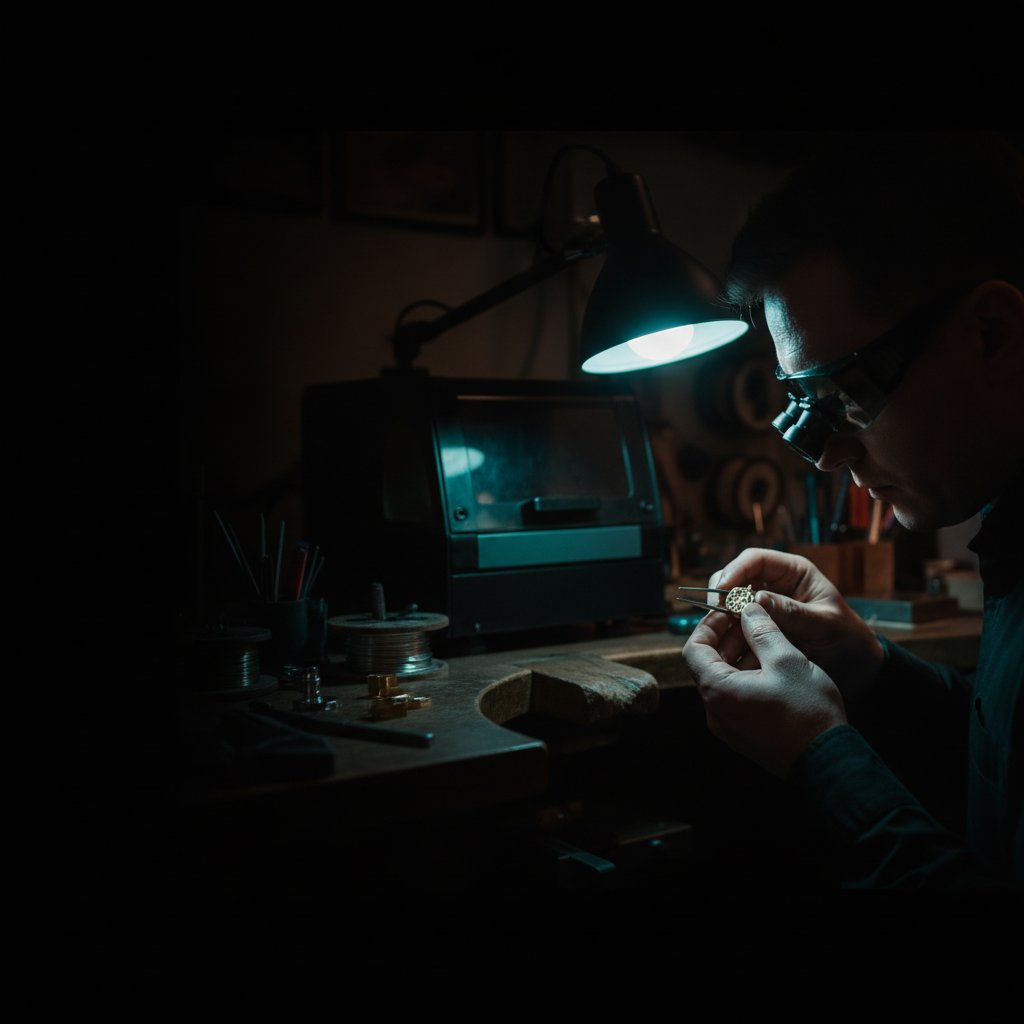
Here at our jewelry workshop in Málaga, we cut sterling silver daily. We’ve been through exactly this problem more times than we care to admit, losing precious material to cuts that just wouldn’t go through. Most of the time, the machine wasn’t actually weaker; something subtle had changed in the setup, pulling the beam out of its razor-sharp focus.
A fiber marking laser is a Class 4 device. The 1064 nm beam is invisible and causes instant, permanent eye damage. Always wear laser safety glasses rated for 1064 nm (with an OD suitable for your source power), and ensure everyone in the room does too. Never leave a running job unattended, and always use proper fume extraction.
The Number That Kills Your Cuts: Focus Height
On a galvo fiber laser, the beam is focused to a tiny spot at a specific height. If your material isn't exactly at that height, the beam spreads out, losing its power density and ability to cut. Even a small error can be catastrophic.
On our machine, the factory-calibrated focus lives in EzCad3’s Motors.ini file as m_dFocusPos. For us, that number is -59.6 mm – this is the Z-axis head position where the platform surface itself is in perfect focus.
Calculating Your Correct Z Height
When you cut a sheet of metal lying on your machine's platform, the top surface of that material is one thickness above the platform. So, the rule is simple:
- Z = focus position + material thickness
For example, if our machine's focus is -59.6 mm and we are cutting a 1 mm sheet of silver, the correct Z-axis height is -59.6 mm + 1 mm = -58.6 mm.
We verified this the hard way. A setting of -58.5 mm cuts perfectly, but -56.5 mm does not cut at all. That’s only 2 mm of defocus, and it completely kills the cut. A ±0.5 mm error might be barely noticeable, but 2 mm turns a through-cut into a surface mark. For months, our own software was needing far more passes than EzCad3 for the same job. The reason wasn't power or protocol; our Z reference was about 2.1 mm too high, meaning every cut ran out of focus. Fixing that reference immediately dropped our pass counts.
Common Causes for Focus Drift
If your cuts have gotten worse and nothing in your file changed, a focus drift is the most likely culprit. Here’s what to check:
- Bent or uneven jig: Is your material resting on a fixture that has bent or warped over time? Even a slight bend will mean one side of your piece is in focus and the other is not.
- Platform movement: Has your machine's platform been nudged, or has its height adjustment screw shifted? This changes the baseline for all your Z-axis measurements.
- Material thickness: Did you switch to a slightly thicker batch of material? If you cut
0.8 mmsilver yesterday and0.9 mmtoday without adjusting your Z, you're already0.1 mmout of ideal focus. - Dirty lens: While less common for significant focus issues, a very dirty F-theta lens can scatter the beam and reduce its intensity at the focal point. Clean it carefully according to your machine's manual.
- Loose Z-axis: Check for any play in your Z-axis mechanism. On our machine, the Z axis moves
3200 steps/mm, so even a tiny bit of slop can translate into noticeable defocus.
The Hidden Killer: Wobble Settings
If your focus is perfect and your laser is still just engraving a line instead of cutting through, the next most likely problem is your wobble setting. This is one of the most misleading failures because the job looks like it’s running exactly as it should.
When cutting metal with a fiber laser, especially reflective metals like silver, we use wobble. The beam oscillates sideways as it follows the cut line. This makes the kerf (the cut line itself) wider than the beam’s actual spot size, allowing molten metal to escape instead of re-welding behind the beam.
On our machine, for cutting sterling silver, our working recipe uses a wobble diameter of 0.15 mm. We once had this setting accidentally changed to 0.015 mm – a factor of ten error, just one decimal place off. A 15 micron wobble is effectively a thin line. It marks perfectly and never opens the cut. Everything else in our recipe was correct – power, speed, frequency, and pass count – and the machine simply would not go through.
If a recipe that used to cut suddenly only engraves a line, check your wobble diameter before you touch anything else. Ensure it's large enough to create a true kerf.
Other Factors That Make Your Laser Seem Weaker
Once you’ve ruled out focus and wobble, a few other issues can manifest as a "weak laser" or "laser stopped cutting" problem.
Incorrect Frequency for Cutting
We often find that frequency behaves the opposite way in cutting and in engraving. For cutting sterling silver, we use a high frequency of 60 kHz (along with 95 % power and 190 mm/s). We tried dropping the frequency to 20 kHz – which produces fatter pulses and works well for deep engraving – on 0.3 mm silver. It cut worse, needing 16 passes and still not going through. Back at 60 kHz, it cuts in a handful of passes. High frequency wins for cutting through; low frequency wins for surface ablation depth.
Insufficient Passes
For cutting silver, pass count, not power, is the main lever for getting through. Turning the power up on a job that won’t cut usually just widens the kerf and heats the piece, potentially distorting it. Ensure you’re using enough passes for your material thickness. Our measured pass counts for sterling silver are:
| Sterling Silver Thickness (mm) | Passes (Our Machine) |
|---|---|
| 0.8 mm | 17 |
| 0.9 mm | 21 |
| 1.0 mm | 28-29 |
These numbers are from our specific machine, our source, and our silver. Always prove any recipe on scrap before you use it on a real piece.
If you're cutting gold, it absorbs more of the beam than silver, so it needs fewer passes. Our internal gold table, derived from our silver measurements, uses roughly half the passes for the same thickness. For example, 1.0 mm gold needs about 14 passes as a starting point, compared to 28-29 for silver. Remember, these gold numbers are estimates and must be proven on your own scrap.
Board Buffer Overflow (for Very Large Jobs)
This is a less common issue, but it can make your laser seem weak, particularly on very large, complex jobs with many passes. The PC sends job commands to the JCZ controller board, which buffers them before execution. This buffer is finite (a couple of megabytes on our board).
On a big job (many passes over extensive geometry), it’s possible to send data faster than the board can mark. If the buffer fills, further commands can be silently dropped. You might have programmed 39 passes, but the metal only received 25.
The symptom is that big jobs cut worse per pass than small ones, the machine goes quiet long before the software says the job is done, and adding passes helps less than it should. This isn't a focus issue, but it's a common "laser weaker" complaint. (Our own software, HagoLaser, implements flow control to prevent this, ensuring all commands are actually executed.)
What to Check First: A Practical Checklist
When your laser isn't cutting like it should, here's the quick checklist we run through in our workshop, from most to least likely:
- Check Focus Height (Z-axis): This is paramount.
- Is your material thickness exactly what you think it is?
- Is your jig perfectly flat and stable?
- Has your platform or Z-axis been moved or shifted?
- Calculate Z = focus position + material thickness and verify your machine's actual Z-axis reading.
- Check Wobble Diameter:
- Ensure the wobble diameter is set correctly (e.g.,
0.15 mmfor our silver recipe), not accidentally off by a decimal place.
- Ensure the wobble diameter is set correctly (e.g.,
- Verify Cutting Parameters:
- Is your frequency appropriate for cutting (high, like
60 kHzfor silver)? - Are you using enough passes for the material thickness?
- Have you accidentally changed speed or power from a known good recipe?
- Is your frequency appropriate for cutting (high, like
- Inspect the Lens:
- Is your F-theta lens clean and free of debris or residue?
- Consider Board Buffer (for large jobs):
- If only large, complex jobs are failing, could the board buffer be dropping passes?
Most of the time, the problem will be one of the first two. A laser that "stopped cutting" isn't usually broken; it's simply out of focus, or its wobble has been unintentionally disabled.