Getting SVG and DXF Fills into EzCad3, Intact
Don't lose your engraved fills when importing designs into EzCad3. We share our daily workflow for getting SVG and DXF files into the laser software, keeping all your fills as intended.
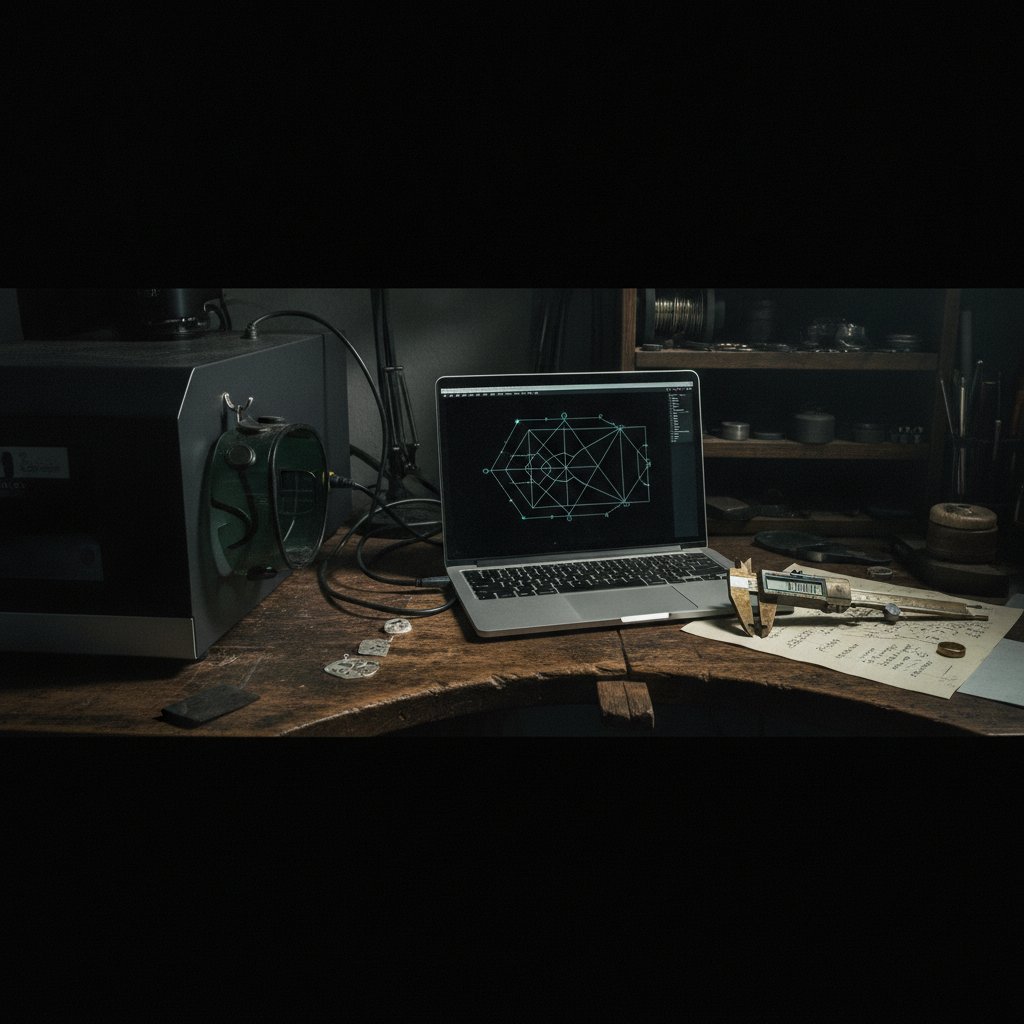
The frustration of importing a perfectly designed SVG or DXF file into EzCad3, only to find all your careful fills have disappeared, is a common headache for anyone using a galvo fiber laser. We've been there, losing time and silver to this exact problem. The good news is that there’s a reliable workflow to get your vector designs, complete with their fills, into EzCad3 ready to mark. This guide walks you through our workshop’s proven method, focusing on preparing your files correctly from the start.
The Problem: Why EzCad3 Drops Your Fills
EzCad3, like many laser control programs, often treats imported vector files as a collection of lines and curves. When you design a shape with a solid fill in graphic software like Inkscape or a CAD program, that "fill" isn't always represented as a specific laser operation in the exported file format. Instead, it's typically a visual attribute of the shape. When EzCad3 imports the file, it reads the vector outlines but doesn't inherently understand what you intended for the interior. The result? You get the boundaries of your shapes, but the fills are missing, forcing you to manually apply a hatch pattern in EzCad3 for every single filled object.
This isn't a fault of EzCad3, which is excellent at driving the hardware; it's a workflow mismatch. Our goal is to bridge that gap, telling EzCad3 what to do with a filled shape directly from the design file. Getting this wrong costs material and time. We've seen pieces of sterling silver worth significant money ruined because a fill was missed, or an operation order was incorrect, causing the part to shift.
Before we go further: always remember a fiber marking laser is Class 4. The 1064 nm beam is invisible and causes instant, permanent eye damage. Wear laser safety glasses rated for 1064 nm with appropriate OD, and ensure everyone in the room does the same. Keep extraction running to manage metal fume. Never leave a running job unattended. Physical interlocks are your real safety layer, not software checks.
The Solution: A Color-Based Workflow for EzCad3
The most reliable way to get your fills into EzCad3 without losing them is to make your design software speak the laser's language. This means assigning specific operations (like "engrave" or "cut") to distinct colors in your drawing, and then configuring EzCad3 to understand those colors. This is the core of our daily color workflow.
We use Inkscape for our design work because it's free, powerful, and exports excellent SVG files. The principle, however, can be adapted to other vector or CAD software that allows precise color control and SVG/DXF export.
In our workshop, we've standardized on three core colors, each assigned to a specific laser operation:
- Black (
#000000): Inner Cut. Use this for any internal holes, letters, or details that need to be cut out. These are marked first while the piece is still held by the surrounding material. - Blue (
#0000ff): Engrave. This is for all engraving and marking operations, including filled areas. When EzCad3 sees a closed shape with this blue fill, it knows to engrave it with the assigned parameters. - Purple (
#8800ff): Outer Cut. This is for the final outline that frees the piece from the sheet. It's always performed last to prevent the part from moving during earlier operations.
These are defaults, not unbreakable rules. Your workshop can assign any color to any operation within EzCad3's settings. The critical point is consistency: what you draw in blue should always engrave, and what you draw in black should always be an inner cut. If a color is present in your drawing but not assigned to an operation in EzCad3, it simply won't be marked. This is genuinely useful: you can draw alignment guides or jig outlines in a unique, unassigned color, knowing the laser will project the red aiming light without firing the beam.
This approach makes the drawing itself the job definition. There are no layers to configure in EzCad3, no complex dialogs to walk through. A new design is drawn, colored, and fired without touching machine settings. SVG fills become engraved fills automatically, so you don't have to re-hatch anything by hand.
Preparing Your Files in Inkscape (or Your CAD Software)
Inkscape Setup: The HagoLaser Palette
To make this color workflow seamless, you need a consistent color palette in your design software. Our HagoLaser software installer drops a HagoLaser palette into Inkscape's user palette folder. This palette contains our standard operation colors.
After installation, you'll need to select it in Inkscape. At the right-hand end of the color strip along the bottom of the Inkscape window, there's a small arrow button. Click it to open the list of available palettes and select HagoLaser. From then on, the first three swatches will be labeled — inner cut, engrave, outer cut — so you're picking operations, not just colors.
Getting this step wrong is the most common first-run confusion. People often draw with Inkscape's default blue, which is not the exact #0000ff we've assigned, and then nothing is engraved. Always use the palette swatches.
Drawing for the Laser: Design in Millimeters
Always design your pieces at their real-world size in millimeters. What you draw at 20 mm wide in Inkscape will be marked at 20 mm wide on your material. The document is your workpiece, not a canvas to scale later. Use the specific color swatches from your palette to define each part of your design:
- For any area you want to engrave, draw it as a filled shape and assign our blue (
#0000ff) color. - For internal cuts (e.g., holes, cut-out letters), use our black (
#000000) for the stroke. - For the final outer contour that separates the piece from the sheet, use our purple (
#8800ff) for the stroke.
This order of operations — inner cuts, then engravings, then outer cuts — is critical. Cutting an outer contour before inner details means the part can shift, ruining the job. For alignment, draw elements in a color not assigned to any EzCad3 pen; they will project but not mark.
Exporting Your Design
For designs with intricate fills, SVG is often the most direct path. Inkscape's native format is SVG, so simply saving your file (e.g., as 1.svg) is enough. The SVG format retains the color information for both strokes and fills directly.
If you are primarily using CAD software and exporting DXF files, the process for fills can be different. DXF is excellent for conveying precise geometric outlines, but it doesn't always carry fill information in a way that EzCad3 automatically interprets as a hatch. If you want fills from a DXF, you generally have two options:
- Pre-hatch in CAD: Convert your filled areas into actual hatch patterns (lines) within your CAD software before exporting to DXF. These lines will then be imported by EzCad3 as individual vectors.
- Manual hatching in EzCad3: Import the DXF, which will show the outlines of your filled shapes, and then select each closed shape in EzCad3 and apply a hatch pattern manually.
For our workshop's color-based workflow and automated fills, SVG is the preferred format. We can simply save our Inkscape file and it's ready.
Importing and Processing in EzCad3
Once your SVG is ready, the workflow in EzCad3 is remarkably simple:
- Open EzCad3.
- Go to
File>Import Vector Fileand select your SVG. - EzCad3 will import the vectors. You will see the different colored lines and filled shapes on the canvas.
- The magic happens in the
Pensettings panel on the right. Each color in your SVG should correspond to a "Pen" in EzCad3. If you've used our standard colors, you'll see Pen 1 (often red by default) might be assigned to black, Pen 2 to blue, and Pen 3 to purple. - Double-click each Pen to ensure its parameters are correct for the material and operation. For engraving sterling silver, our current working recipe for a 100 W MOPA source looks like this:
| Parameter | Value (Our Machine) | Meaning in Practice |
|---|---|---|
| Speed | 700 mm/s | How fast the galvos drag the spot. Slower means more energy per millimetre. |
| Power | 95 % | Average power out of the source. Not the whole story; frequency matters too. |
| Frequency | 40 kHz | Pulses per second. Higher frequency = weaker individual pulses at fixed power. |
| Pulse width | 200 ns | (MOPA sources only) Longer pulses dig deeper; shorter pulses are gentler. |
| Passes (LOOP) | 5 | How many times the whole geometry is repeated. The honest way to get depth. |
| Jump speed | 2000 mm/s | How fast the head travels between marks with the beam off. Too slow can cause stray lines. |
| Laser Off TC | 100 µs | Delay after last mark before jump. Too short, beam stays live during jump, causing faint lines. |
| Polygon TC | 100 | Small settling delay at corners. Trades sharpness for speed. |
| Min/Max jump TC | 10/85 | Small settling delays at start/end of jumps. |
| Contour pass | Enabled | An extra outline pass around filled areas. Makes small text crisper, thickens slightly. |
Remember, these are our measured settings for our 100 W MOPA machine cutting sterling silver from 0.25 mm to 1 mm. You must prove any settings on scrap material specific to your machine and material.
For fills, ensure the "Hatch" option is enabled within the relevant Pen's settings. With our workflow, if a blue shape is imported as a fill, EzCad3 will automatically recognize it and apply the hatch parameters from the assigned blue pen.
The "One Working File" Workflow
Our daily routine is to keep one single SVG file — ours is literally named 1.svg — loaded in our design software. We draw the next job in that same file in Inkscape, save it, and then simply press "Mark" in EzCad3. There's no re-importing, no file dialog, no export step. This works because the software re-reads the SVG from disk every time it marks. Save in Inkscape, mark in EzCad3: what is on the metal is what you last saved. The file also stays loaded between sessions, so the machine is ready the moment the program opens.
The consequence worth stating plainly: if you press Mark and get the previous design, you did not save in Inkscape. That is the entire failure mode of this simple, efficient system.
Troubleshooting Common Issues
- "Nothing is marking":
- Wrong Color: The most frequent issue. Double-check that you used the exact palette color (e.g.,
#0000fffor blue) and not a similar shade. - Pen Not Assigned: Ensure the color used in your SVG is correctly assigned to an active Pen in EzCad3. If a color is not assigned, it will not mark.
- Wrong Color: The most frequent issue. Double-check that you used the exact palette color (e.g.,
- "Faint, stray lines appear between marks":
Laser Off TCToo Short: This is a common cause. Increase theLaser Off TC(Laser Off Time Compensation) setting in your Pen parameters. If it's too short, the laser doesn't fully shut down before the galvo head jumps, drawing faint lines. Our 100 µs is a good starting point.Jump speedToo Slow: While less common, a very slow jump speed can sometimes exacerbate stray light issues. Our 2000 mm/s is typical.
- "The part moves halfway through the job":
- Incorrect Order of Operations: This means your outer cut was performed too early. Always ensure inner cuts and engravings happen before the final outer cut that frees the piece. Our color workflow inherently manages this by assigning black (inner) and blue (engrave) to lower-numbered pens, which are processed before purple (outer cut).
- "The edges are black and oxidized":
- This is normal for sterling silver after laser cutting or deep engraving. The laser leaves a black edge. The piece off the machine is not the piece you sell. Our routine is to polish and bring the shine back after marking. Plan for this: any design has to survive polishing without losing fine detail.
Practical Takeaways for Your Workshop
Adopting a robust workflow for importing designs into EzCad3 will save you significant time and material. Here’s what we've learned over countless hours at the laser:
- Standardize Your Colors: Implement a consistent color palette in your design software where each color directly maps to a specific laser operation in EzCad3. This is the single most important step for reliable fills.
- Design 1:1 in Millimeters: Always draw your pieces at their exact, real-world dimensions. Your design document is your workpiece.
- Prioritize SVG for Fills: While DXF is excellent for geometric outlines, SVG, especially from Inkscape, is superior for designs that rely on colored fills being automatically recognized as engraved areas by EzCad3.
- Master Your Pen Settings: Understand what each EzCad3 parameter actually does. Test, test, test on scrap material to dial in your settings for different operations and materials. Our table above offers a starting point for silver engraving.
- Back Up Your EzCad3 Configuration: Your machine's calibration and parameters live in EzCad3's
PARAMfolder. Back up this folder regularly — it containsMotors.ini,MarkParamlib.ini, and your.corcorrection file. - Always Test on Scrap: Never run a new design or material setting on a valuable piece without first proving it on scrap. The cost of a few square millimeters of scrap is always less than a ruined piece of jewelry.